How I Create AI Videos in Minutes Using Topview + Seedance 2.0 (2026 Workflow)
Learn how to create high-quality AI videos using Topview and Seedance 2.0. A beginner-friendly 2026 workflow for creators, marketers, and founders.


A year ago, creating a single 30-second video would take me at least an hour.
Script → shoot → edit → voiceover → export.
Now?
I can generate a full video in under 2 minutes, thanks to cool tools like AI video generators.
This is because tools like Topview (with Seedance 2.0) have completely changed the workflow.
In this guide, I’ll show you exactly how I’m using it, and how you can too.
Why AI Video Creation Feels Hard (At First)
Most people try AI video tools and quit.
Not because they don’t work, but because:
- The prompts feel confusing
- The output looks inconsistent
- The workflow feels too “raw”
That’s the gap I noticed when testing different tools.
The model itself is powerful. But the experience is what makes or breaks it.
Where Topview + Seedance 2.0 Fits In
Seedance 2.0 (by ByteDance) is one of the newer AI video models focused on:
- Realistic motion
- Cleaner transitions
- More cinematic output
But using raw AI models directly can still feel technical.
This is where Topview simplifies things.
Instead of starting from scratch, you get:
- Structured templates
- Pre-built workflows
- A much cleaner interface
So instead of figuring out how to create the video, you focus on what you want to create.
My Actual Workflow (Step-by-Step)
Here’s exactly how I use Topview + Seedance 2.0.
Step 1: Start With a Use Case
Before opening the tool, I decide:
- Is this a reel?
- A product video?
- An ad?
- A story-based clip?
This matters more than the tool itself.
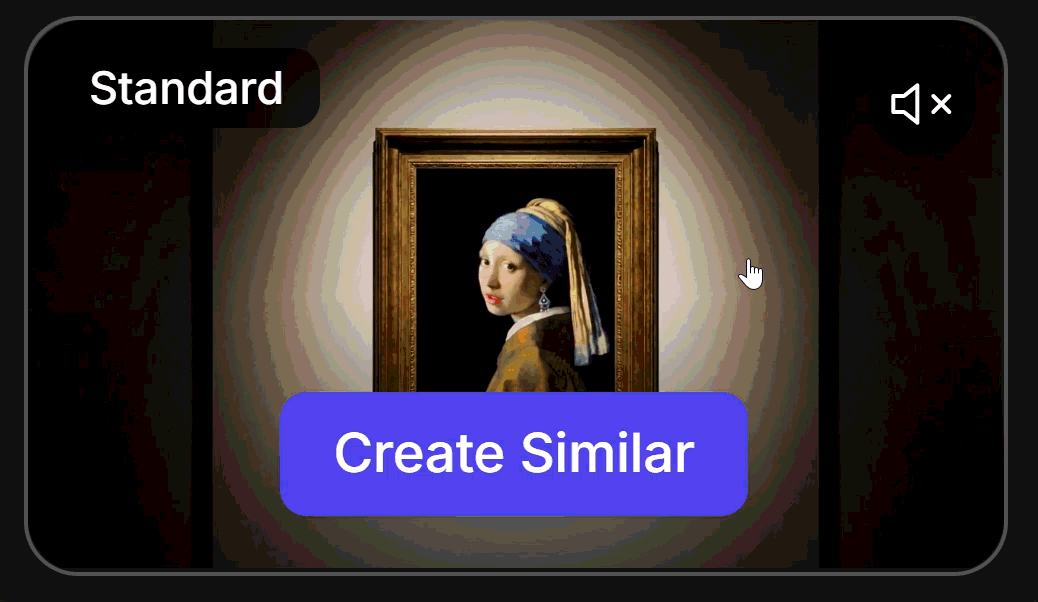
Step 2: Use Templates Instead of Starting From Scratch
This is the biggest advantage of Topview.
Instead of writing everything manually, I:
- Browse templates
- Click “Create Similar”
- Modify the prompt
This instantly gives structure to the video.
Step 3: Write a Better Prompt (With Context)
Instead of vague prompts, I use:
- Scene
- Motion
- Style
- Lighting
- Purpose
Example:
“Cinematic product video of a skincare bottle, soft lighting, slow motion, marble background, luxury aesthetic, Instagram ad style”
Seedance 2.0 handles the execution surprisingly well when the input is clear.
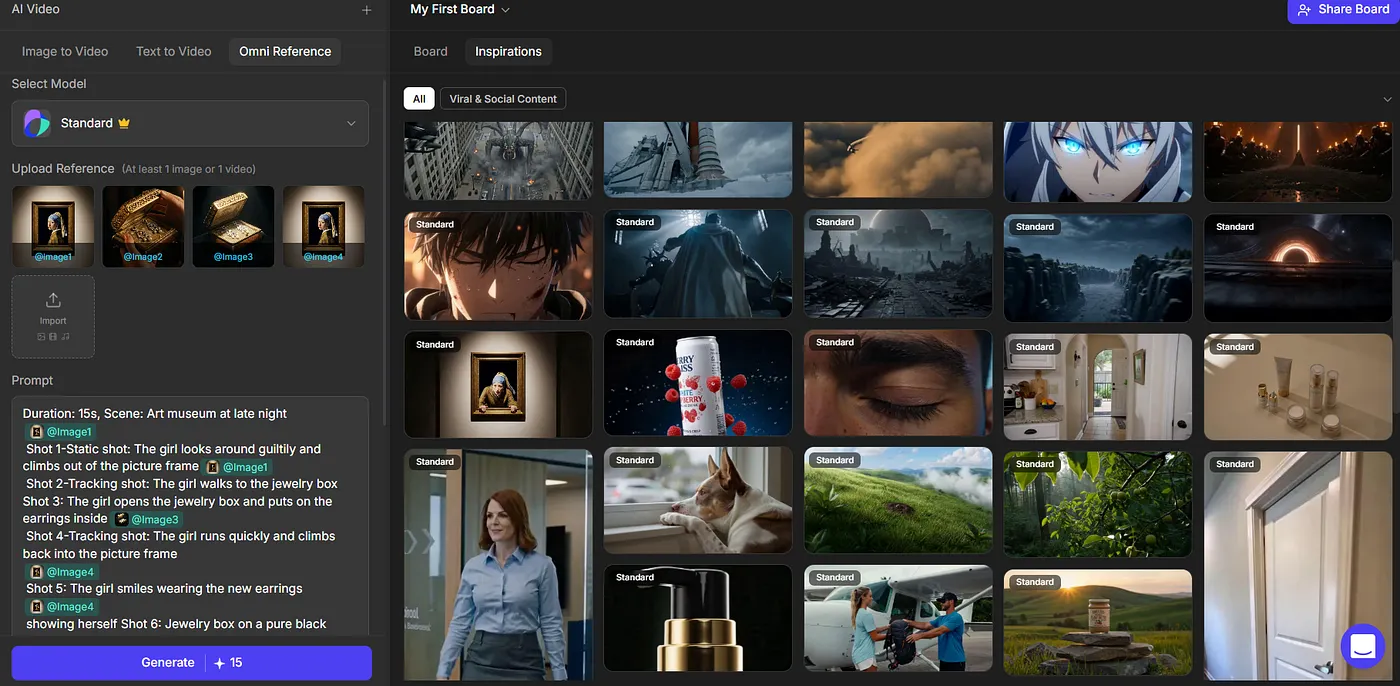
Step 4: Choose Mode (Fast vs Standard)
Topview gives two options:
- Fast mode → quicker outputs (great for testing ideas)
- Standard mode → higher quality
I usually:
- Test with Fast
- Finalize with Standard
Step 5: Iterate (This Is Key)
No AI video is perfect on the first try.
So I:
- Generate
- Spot issues
- Adjust prompt
- Regenerate
This takes minutes, but dramatically improves quality.
What I Actually Like About This Setup
After testing multiple tools, here’s what stood out:
1. It’s Beginner-Friendly
You don’t need to understand:
- Prompt engineering deeply
- Complex editing workflows
The templates guide you.
2. The Output Feels More “Usable”
Compared to many tools:
- Motion is smoother
- Scenes feel more consistent
- Videos look closer to real content
Not perfect, but definitely usable.
3. It’s Fast Enough to Scale Content
This is the real advantage.
You can:
- Create multiple videos quickly
- Test different ideas
- Iterate fast
Which is exactly what content creation in 2026 demands.
Who This Works Best For
From my testing, this setup works best for:
- Content creators (Reels, Shorts, YouTube)
- Ecommerce brands (product videos)
- Marketers (ad creatives)
- Founders (quick storytelling content)
Basically, anyone who needs video at scale.
Real Use Cases I Tried
Here are a few things I tested:
- Product promo videos
- Short-form ad creatives
- Simple storytelling clips
And the biggest takeaway?
You don’t need a production team anymore.
If You Want the Full Breakdown
This article is more about the workflow.
But if you want a deeper dive into:
- What Seedance 2.0 actually is
- How Topview integrates it
- Real examples + outputs
- Pricing, templates, and limitations
I’ve covered everything in detail here:
👉 [Read my full Seedance 2.0 review and walkthrough]
Final Thoughts
AI video tools are no longer the bottleneck. Your workflow is. Once you:
- Use templates
- Write better prompts
- Iterate quickly
You can create content faster than ever.
And tools like Topview + Seedance 2.0 make that process a lot more accessible, especially if you’re just getting started.
Affiliate Disclosure
This article is part of a paid collaboration with Topview. I may earn a commission if you sign up through my links, at no extra cost to you. All opinions are based on my own testing and experience.